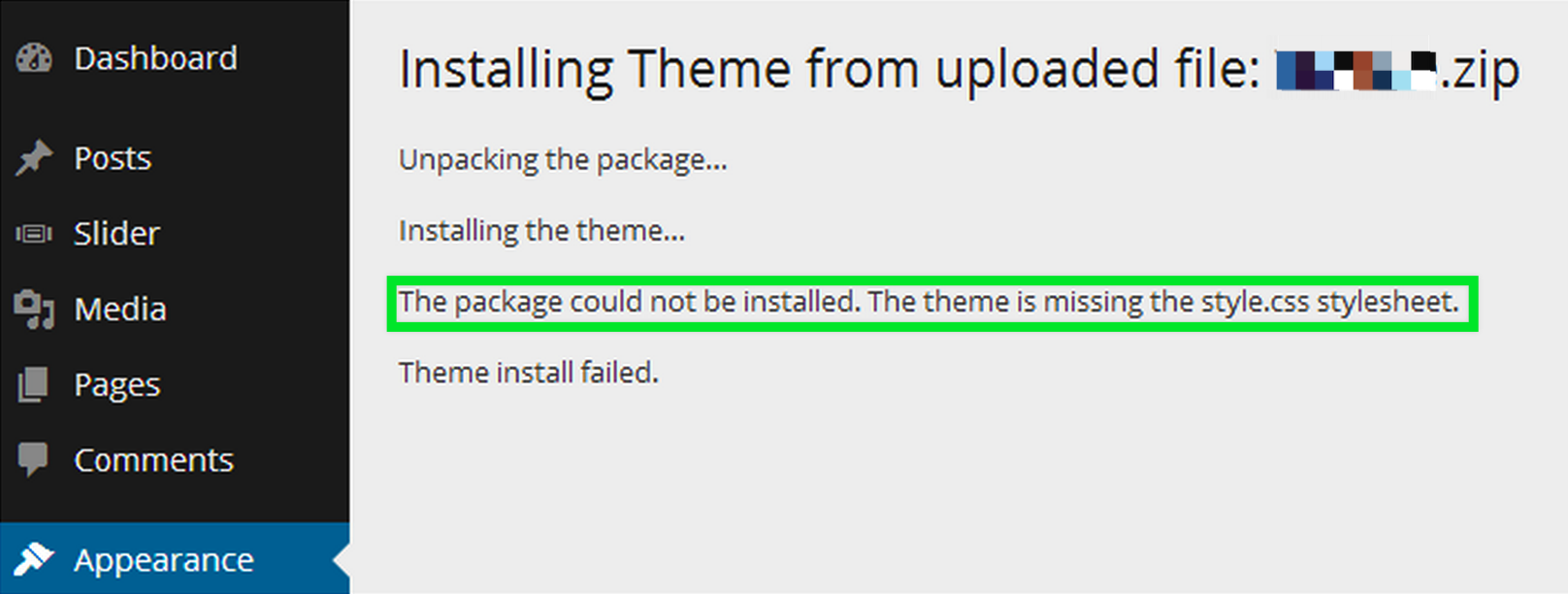
This error almost always means you've uploaded the wrong file — usually the full .zip package instead of the installable WordPress theme file. Here's how to fix it.
Which file should I upload?
Your download includes two options:
-
All files & documentation (full .zip folder) — you'll need to extract this and locate the installable WordPress file inside it.

-
Installable WordPress file only — this is the one WordPress needs.
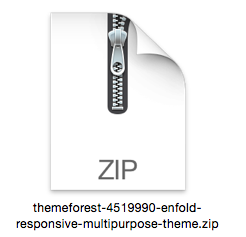
Only upload the file named NameOfTheme.zip. Uploading the full package with all files will trigger this error.
How do I upload the theme through the WordPress admin area?
- Log in to your WordPress admin area.
- Go to Appearance > Themes.
- Click Add New.
- Click Upload.
- Browse to and select the installable theme .zip file, then click Upload.
How do I upload the theme via FTP?
You can also upload WordPress theme files manually via FTP:
- Upload the files to the /wp-content/themes/ folder on your server.
- Log in to your WordPress admin area and activate the theme.
- See WordPress.org's guide to working with themes for more detail.
Still getting the error? Check these
- Confirm you purchased a WordPress theme. Check the item's compatibility listed on the item page, below the buyer rating.
- Check which type of WordPress you're using. Only WordPress.org sites and WordPress.com Business plans support custom theme uploads — WordPress.com's free/standard plans don't. See WordPress.com vs. WordPress.org and WordPress.com Business plans for details.
- Read the included documentation and item comments. The item's installation documentation (usually a PDF or HTML file) often has item-specific installation steps.
- Using a Template Kit? These must be imported via a plugin, not the standard WordPress Import feature. See our guide to uploading Elementor Template Kits.
- Still stuck? Contact the item's author for support.